

Using feeds
Write to a feed from a pipeline
A pipeline can write its outputs straight to a Feed Out. Use this to send a package of data to a partner organisation without downloading and uploading files.
In the pipeline’s Outputs tab, each output can be written to a dataset or a feed:
- Dataset
Use datasets to connect to other pipelines or export from Quantemplate via API. Learn more about exporting to a dataset. - Feed Out
Use feeds to send packages of data to a partner organisation.
Before you start
- Set up the Feed Out that will send the data to your partner, with any subsections you need.
- Make sure the output you want to send is exportable, so it appears in the Output Datasets list.
- Run the pipeline.
Write an output to a feed
- In the pipeline, open the Outputs tab.
- In the Output Datasets list, click ‘Select a destination’ next to the output, then choose ‘Feed Out’.
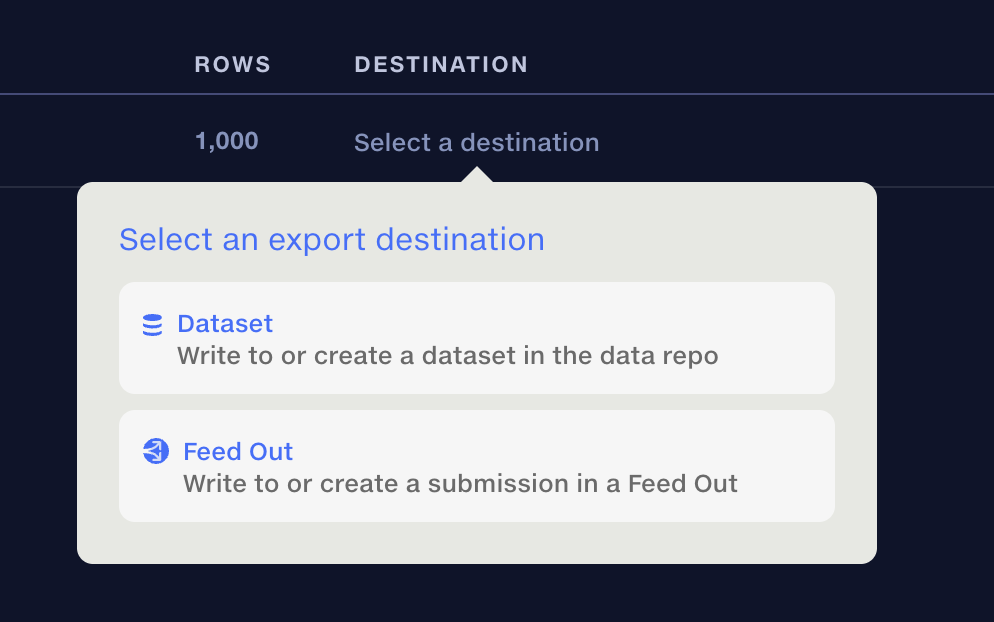
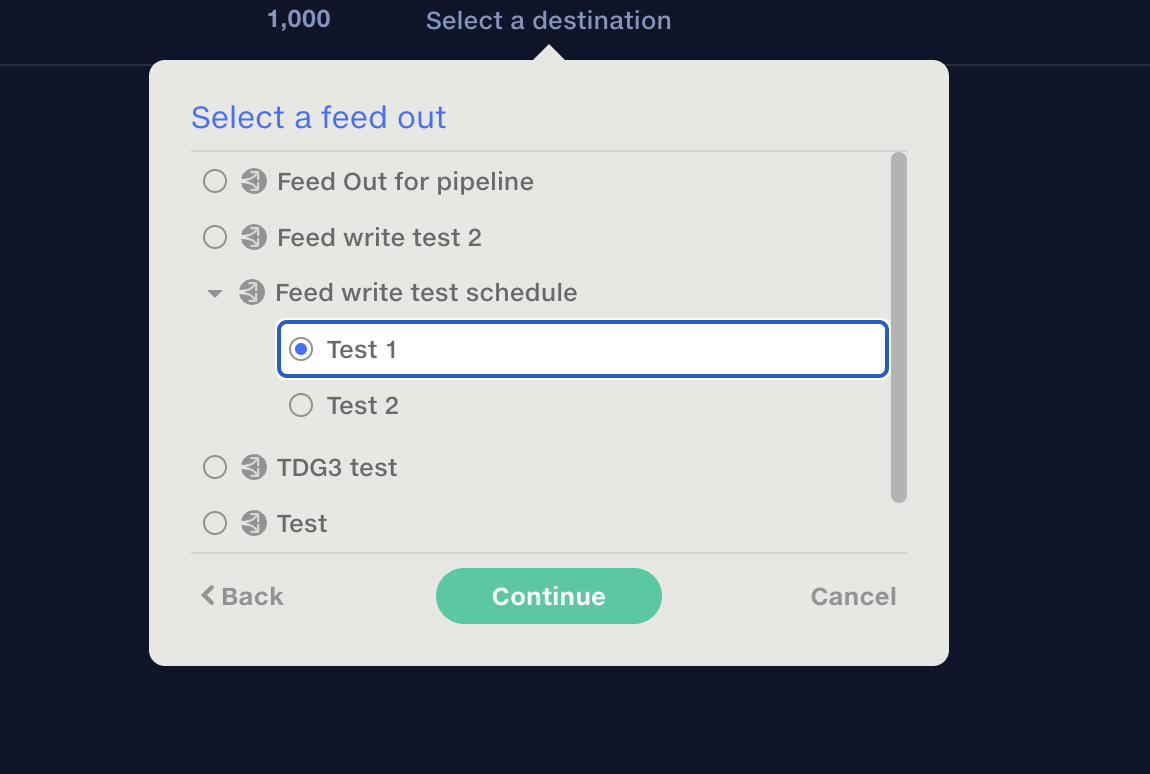
- Select the Feed Out to write to. Only Feeds Out are listed. If the feed has subsections, click the arrow next to the feed name and select the subsection. Click ‘Continue’.
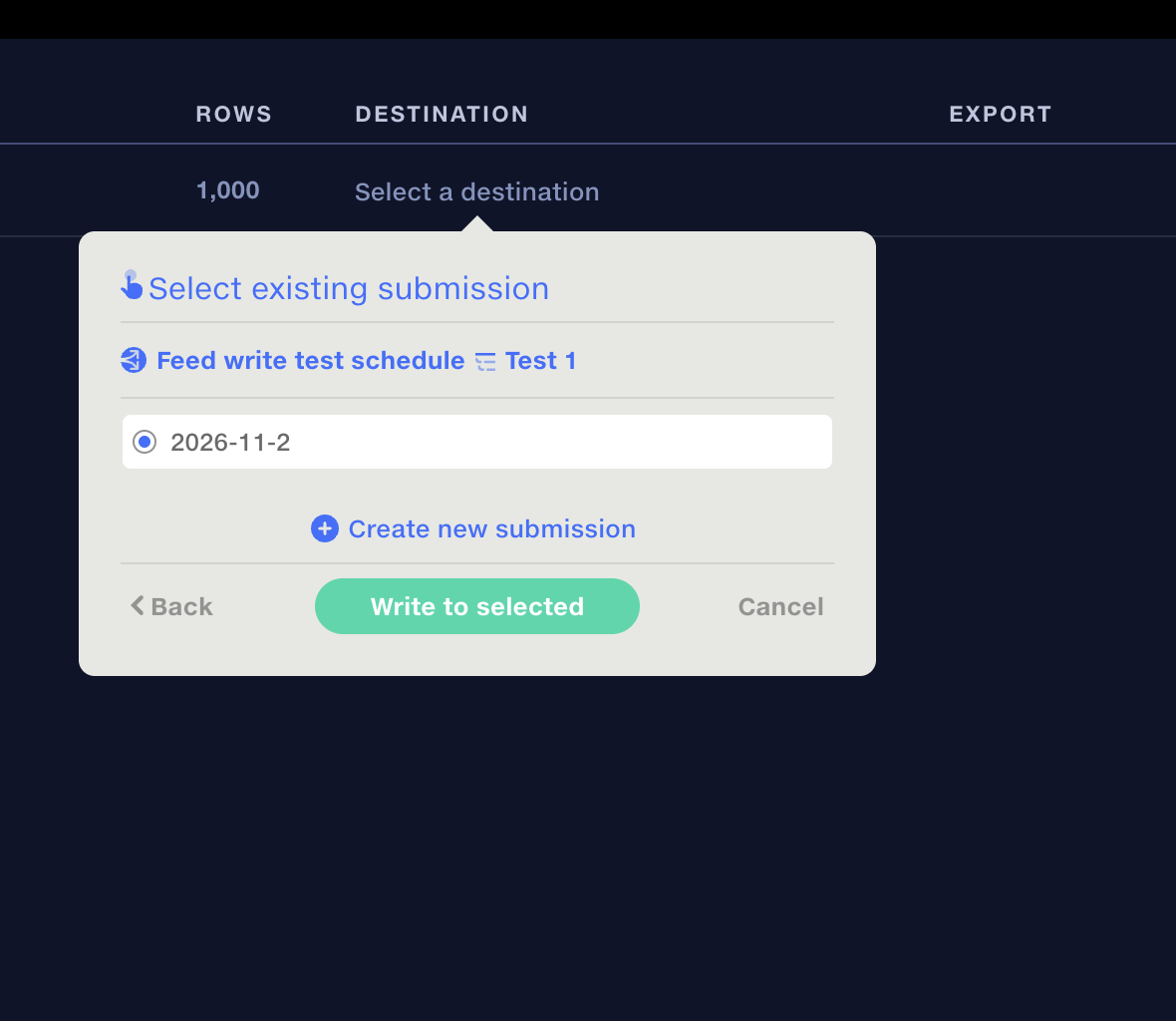
- Select the open submission to write to, then click ‘Write to selected’. An open submission is one that is waiting for data in one or more subsections. Or, to start a new submission, click ‘Create new submission’ and name the new submission.
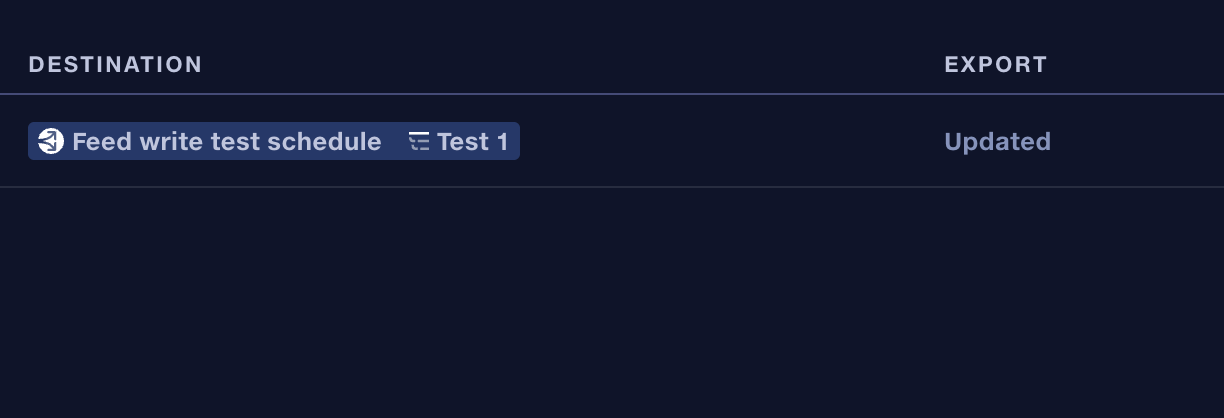
When you click ‘Write to selected’, the data is written straight away. The Destination column shows the feed and its subsection, and the Export column shows ‘Updated’. The subsection is remembered for future exports from this output.
Create a new submission
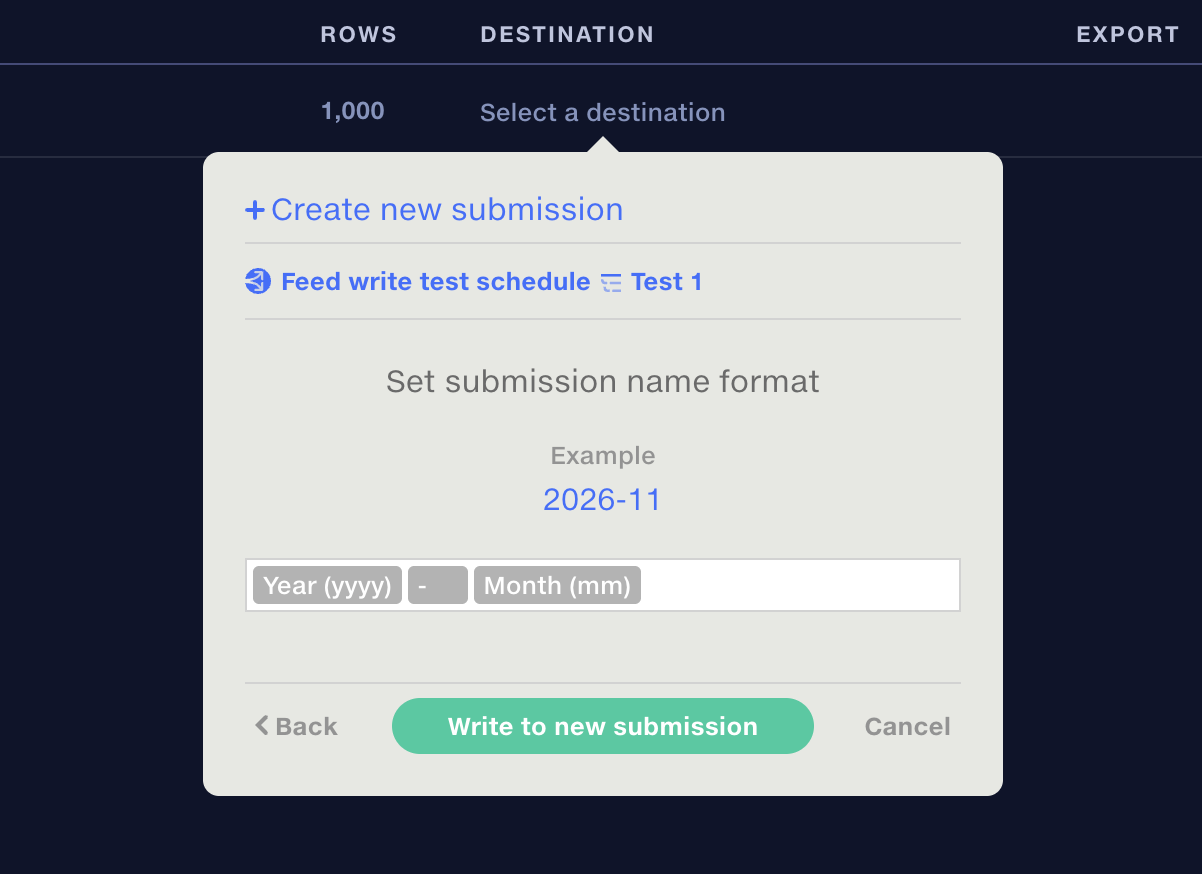
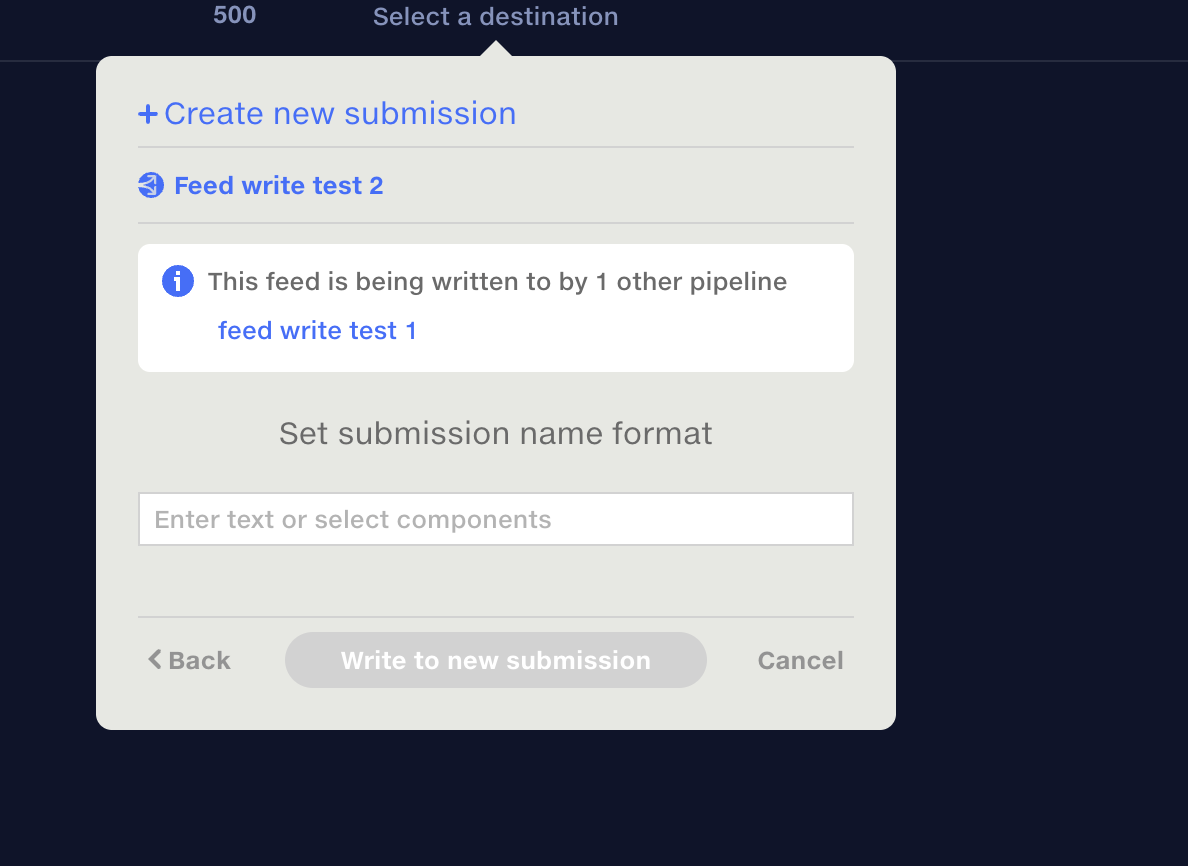
When you create a new submission from a pipeline, you set a format for its name rather than typing the name itself. The ‘Example’ shows what the name will look like.
Feeds with a schedule
If the feed has a schedule, the name format is filled in from the schedule. Click ‘Write to new submission’ to accept it.
Feeds without a schedule
If the feed has no schedule, build the name format yourself. Click in the field to choose from the components, or type your own text. You can combine:
- Date components, such as the year, month, quarter or week
- Separators, such as a hyphen
- Custom text
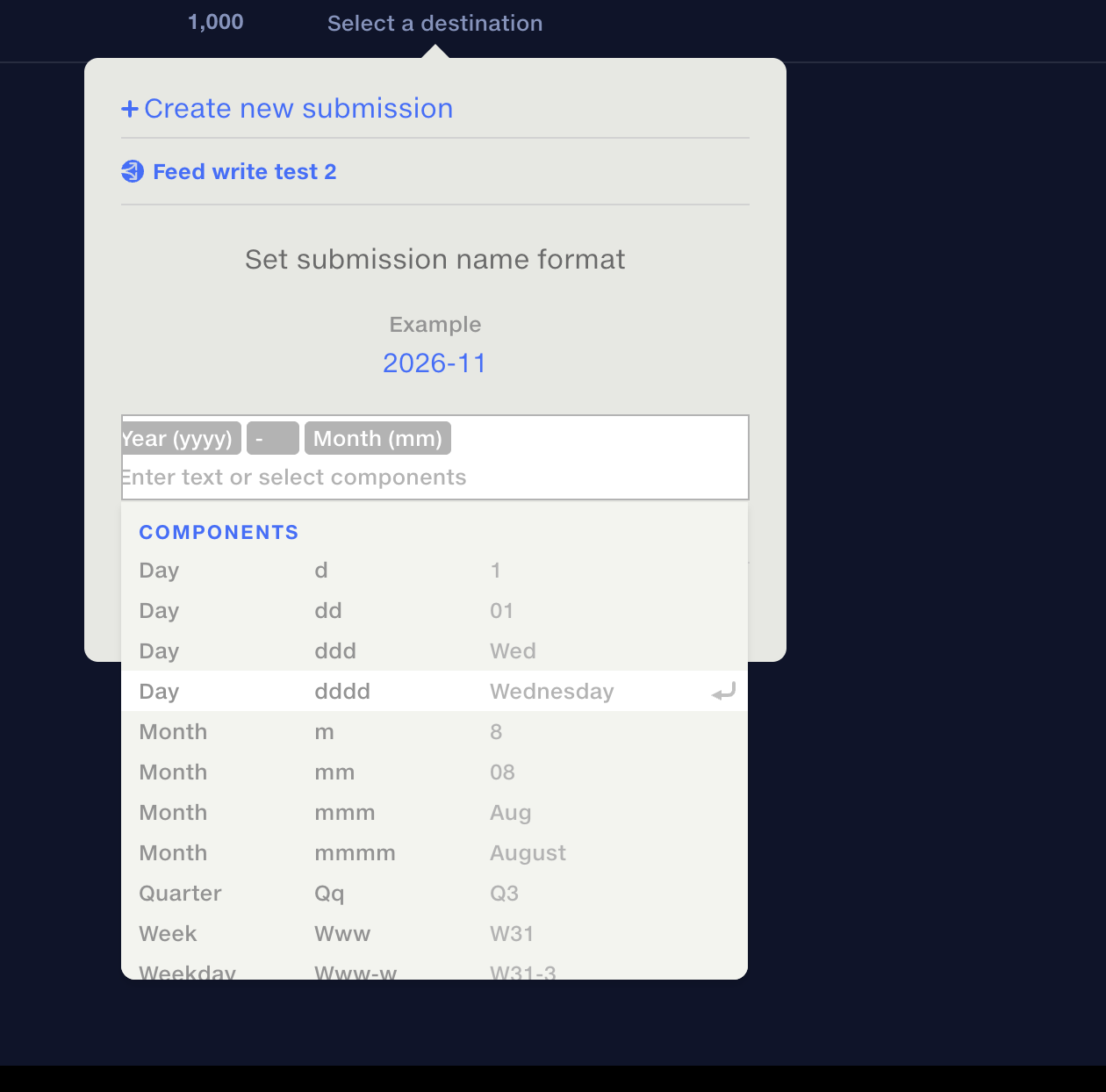
When the ‘Example’ looks right, click ‘Write to new submission’.
Write to the new submission
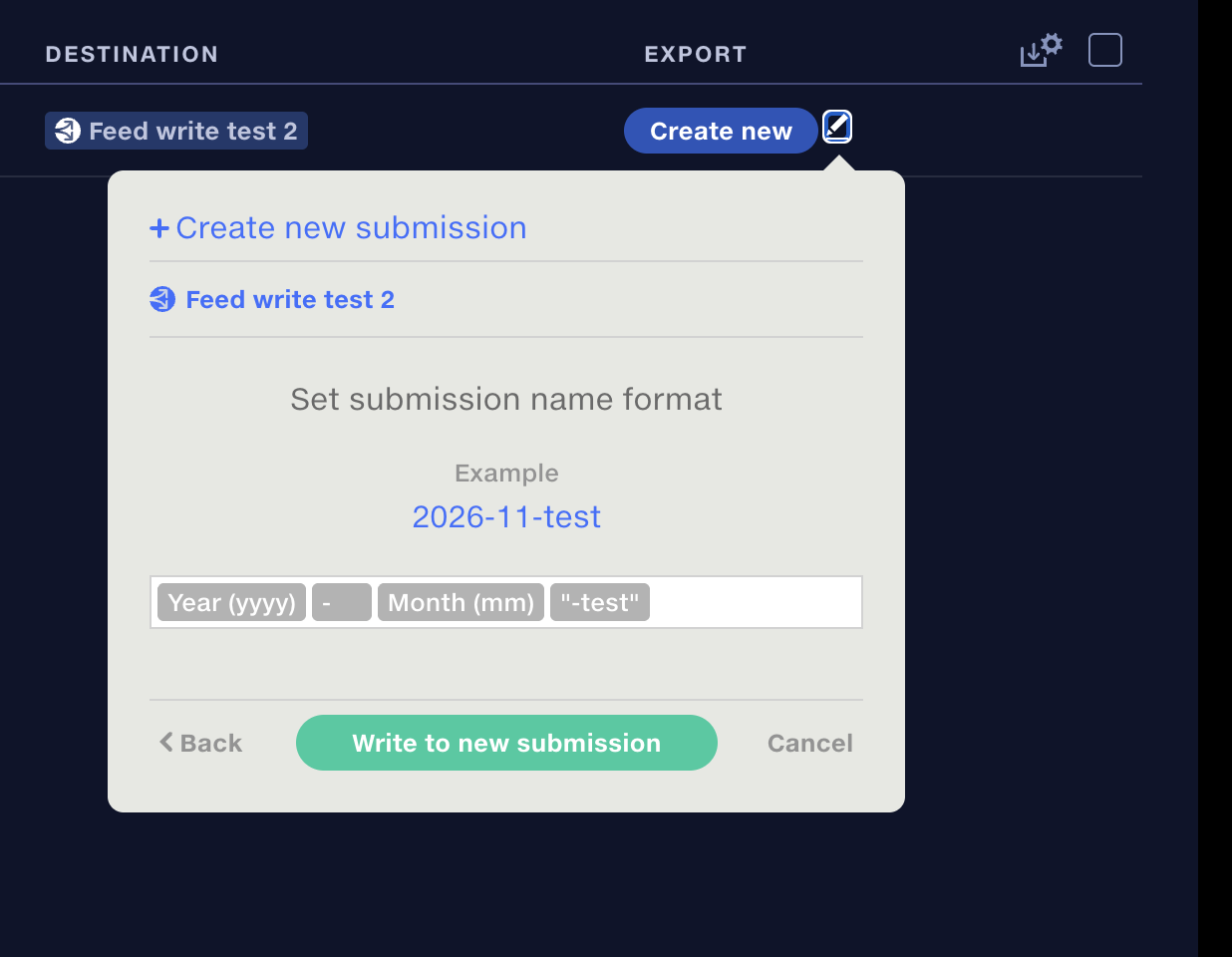
After you click ‘Write to new submission’, the Export column shows a ‘Create new’ button. Click it to create the submission and write the data to it.
To change the name format, click the edit button next to ‘Create new’.
Write to the feed after later runs
Once a feed is an output’s destination, the Export column shows ‘Write to latest’ when the feed has an open submission. Click it to write the output to the latest open submission in the chosen subsection. It writes to the latest open submission even if later submissions already contain data.
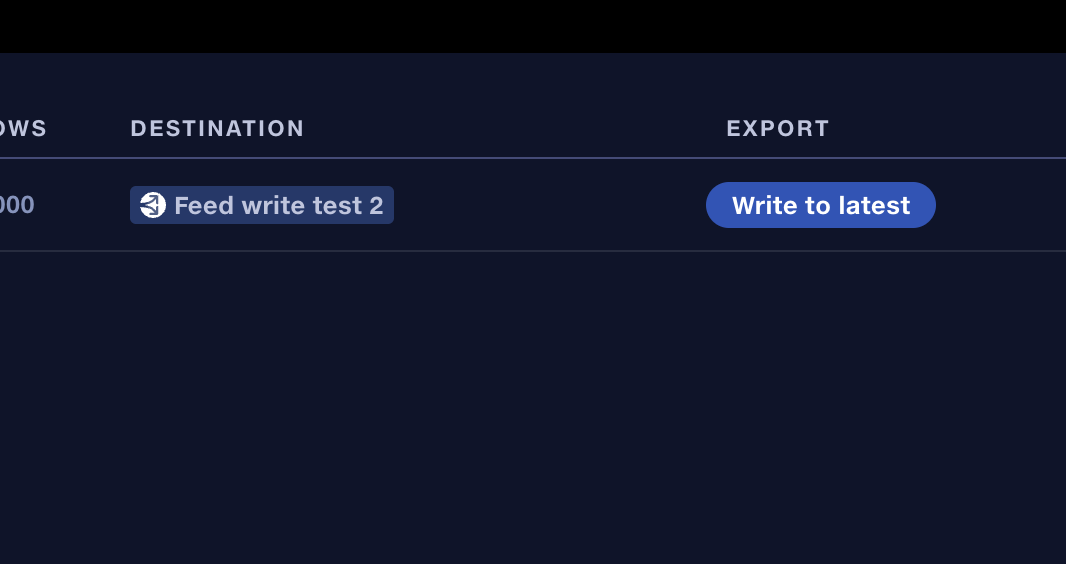
To write to a new submission instead, remove the feed from the output’s destination and add it again. Then click ‘Create new submission’ and name the new submission.
Write to a feed from more than one pipeline
More than one pipeline can write to the same feed. For example, one pipeline could write premium data to a Premium subsection and another could write claims data to a Claims subsection.
When you create a new submission, Quantemplate tells you if other pipelines already write to the feed with their own name formats, and lists them. Check their name formats, so that every pipeline names its submissions the same way.
Create submissions automatically
Use Auto Export to write to the feed every time the pipeline runs successfully. Each run writes to the latest submission that is still waiting for data in your chosen subsection. If no submission is open, Auto Export creates a new one and names it using your name format.
Set up Auto Export to a feed
- Using the sharing popup, share the pipeline with the Robot User.
- In the Outputs tab, click the robot icon next to the destination feed.
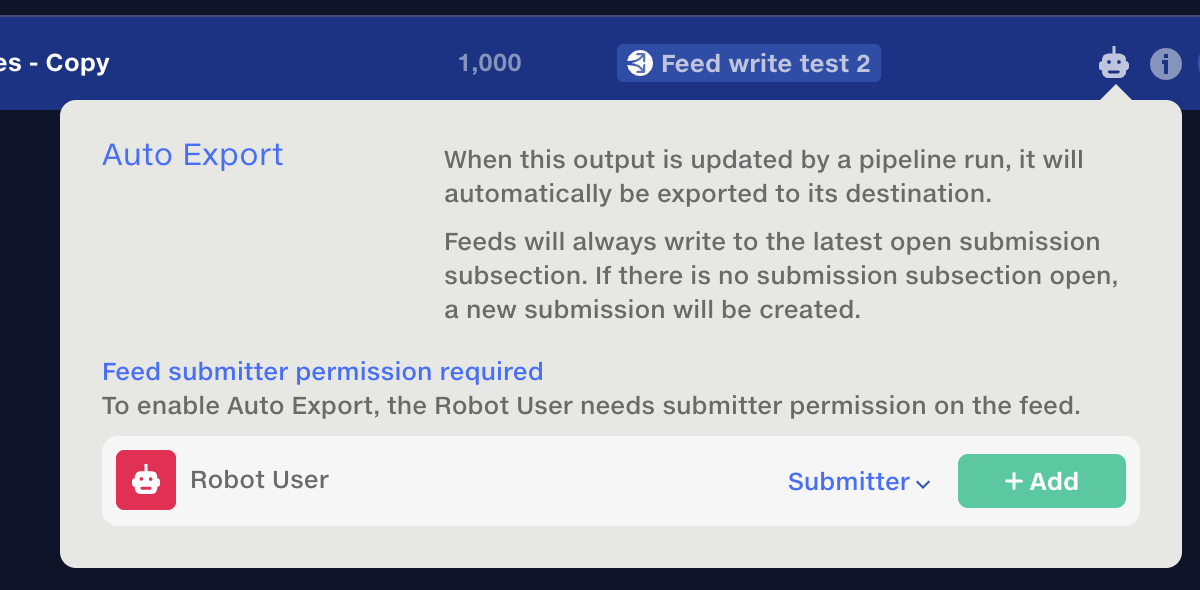
- If the popup shows ‘Feed submitter permission required’, click ‘+ Add’ to give the Robot User Submitter permission on the feed. Only feed owners can do this. If you aren’t the owner, ask the feed owner to share the feed with the Robot User as a Submitter.
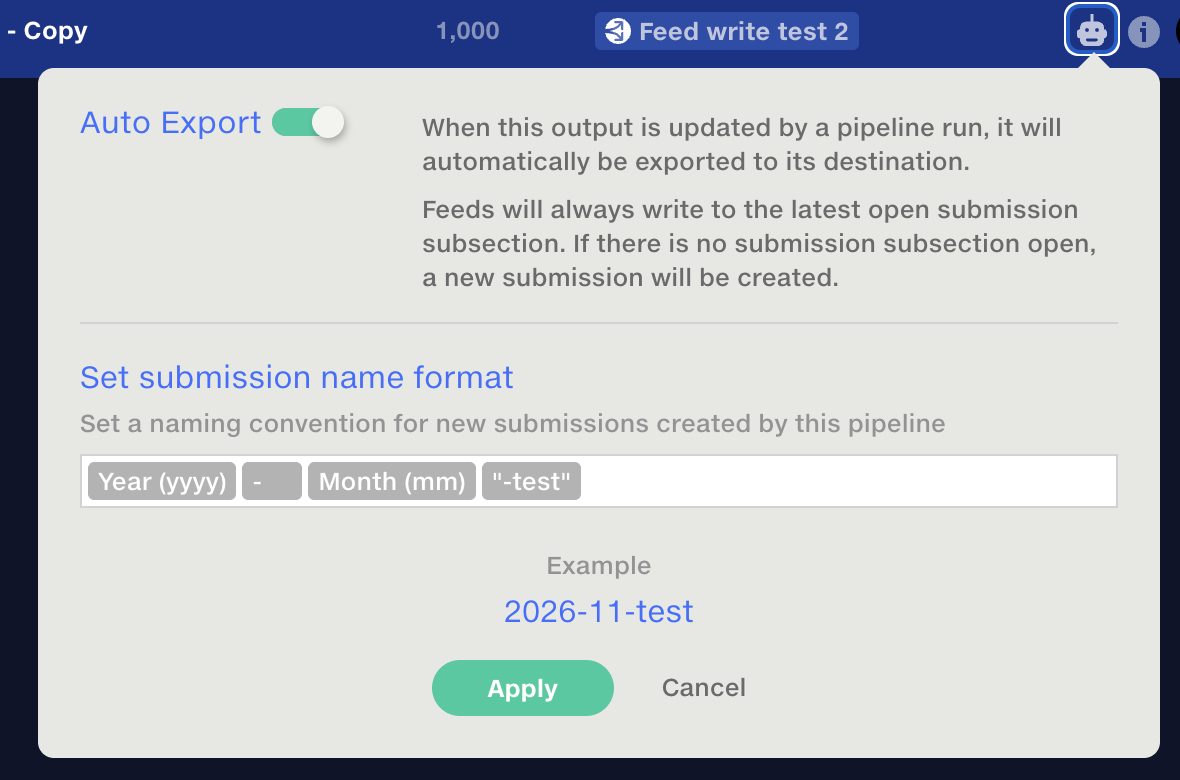
- Set the Auto Export toggle to ON.
- Under ‘Set submission name format’, set the name format for new submissions. If the feed has a schedule, this is filled in from the schedule.
- Click ‘Apply’.
The output’s status changes to ‘Pending’ until the next successful run. Read more about Auto Export statuses.